Use Advanced Search to Find Loads

Use Advanced Search to Find Loads

Use Advanced Search to Find Loads

Before You Use This Article

Use Advanced Search when the regular My Loads or All Loads search returns too many results or when you need to search one specific load field. Advanced Search lets you narrow the load list by dates, status, dispatcher, sales rep, customer, carrier or driver assignment, PO number, BOL number, pickup or delivery location, equipment, and other load details.

After you run an Advanced Search, Load Manager returns you to the load list with the matching loads. You can then open a load from the results and continue working based on your permissions.

Open Advanced Search

  1. Go to All Loads.
  2. Select Advanced Search from the load submenu.
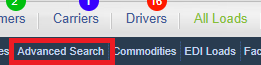
Advanced Search option in the All Loads submenu

When to Use Advanced Search

The standard load search checks several fields at the same time. That is helpful for quick searches, but it can also return extra results when the same number or word appears in more than one field.

Use Advanced Search when you need a more precise result, such as:

  • A specific Load #.
  • One or more Customer PO # values.
  • One or more Customer BOL # values.
  • Loads in a specific Load Status.
  • Loads assigned to a specific dispatcher, sales rep, customer, carrier, or driver-related record.
  • Loads with a specific pickup or delivery city, state, or equipment type.
  • Loads from a recent date range, such as this week, last week, this month, or last month.

Search by Date

The top of the Advanced Search screen includes quick date links and date fields.

  • This Week: Searches loads for the current week.
  • Last Week: Searches loads from the prior week.
  • This Month: Searches loads from the current month.
  • Last Month: Searches loads from the prior month.
  • Pickup Date: Searches by pickup date.
  • Delivery Date: Searches by delivery date.
  • Order Date: Searches by order date.
  • Invoice Date: Searches by invoice date.

Enter dates in the format shown by the date picker, usually mm/dd/yyyy. If a date is not valid, Load Manager will ask you to correct it before running the search.

Search by Load Details

Use the main search fields when you know the exact load information you want to find.

  • Load Status: Limits results to the selected status.
  • Dispatcher: Searches loads assigned to the dispatcher entered.
  • Sales Rep: Searches loads assigned to the sales rep entered.
  • Internal Ref#: Searches the internal reference field on the load.
  • Load#: Searches by load number. You can enter multiple load numbers separated by commas.
  • Carrier or Driver custom field: Carrier and trucking accounts may show a company-specific field for trucking workflows, depending on setup.

When searching multiple load numbers, use only numbers and commas. Do not add spaces, letters, or other punctuation.

Search by Customer and Reference Numbers

The customer fields help you find loads by the customer or by customer-provided reference numbers.

  • Customer Name: Searches loads connected to the customer name entered.
  • Customer PO#: Searches the Customer PO # field. You can enter multiple PO numbers separated by commas.
  • Customer BOL #: Searches the Customer BOL # field. You can enter multiple BOL numbers separated by commas.

Use Customer PO# or Customer BOL # when a regular load search returns too many matches for the same number.
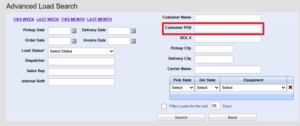
Advanced Load Search form with Customer PO number highlighted

Search by Location, Equipment, Carrier, or Driver

Use the location and equipment fields when you need to find loads that match a lane, region, or assignment.

  • Pickup City: Searches loads by pickup city.
  • Delivery City: Searches loads by delivery city.
  • Carrier Name: Searches by the carrier or assignment name used on the load. Freight Broker and Dispatch Service accounts use carrier records. Carrier and Trucking accounts should also use the Driver tab when they need to search or manage driver profiles directly.
  • Pick State: Searches by pickup state.
  • Del State: Searches by delivery state.
  • Equipment: Searches by the equipment type selected on the load.

The Pick State, Del State, and Equipment area can add another row when you select values in the last row. Use this when you need to search more than one state or equipment combination.

Filter by Recent Days

Use Filter Loads for the last ___ Days when you only want recent loads included in the search.

  1. Check Filter Loads for the last.
  2. Enter the number of days to include.
  3. Select Search.

Load Manager remembers the Advanced Search days filter in your browser. If results look too narrow later, check whether the days filter is still turned on.

Run the Search

  1. Enter the search criteria you want to use.
  2. Leave fields blank if they should not limit the results.
  3. Select Search.
  4. Review the matching loads on the load list.
  5. Click a load row to open the full Load Screen.

Troubleshooting

  • No loads appear: Clear some filters, turn off the recent-days filter, and try again.
  • Too many loads appear: Add a more specific field such as Load #, Customer PO#, Customer BOL #, status, date, customer, or carrier/driver assignment.
  • The load number search will not run: Make sure load numbers contain only numbers and commas.
  • A status is missing: Ask an administrator to review load status setup and user access.
  • You cannot open a load from the results: Your user permissions or the load status may restrict access or editing.

Related Articles

    • Related Articles

    • Use the My Loads Screen

      Use the My Loads Screen Before You Use This Article Access needed: Load Manager login and permission to use this screen, report, setting, or workflow. Best starting path: Start from Freight Brokers, Carriers, Owner-Operators, and Trucking Companies, ...
    • Understanding the All Loads Screen

      Understanding the All Loads Screen Before You Use This Article Access needed: Load Manager login and permission to use this screen, report, setting, or workflow. Best starting path: Start from Freight Brokers, Carriers, Owner-Operators, and Trucking ...
    • Understanding the All Loads Screen

      Understanding the All Loads Screen Before You Use This Article Access needed: Load Manager login and permission to use this screen, report, setting, or workflow. Best starting path: Start from Freight Brokers, Carriers, Owner-Operators, and Trucking ...
    • Use Carrier Lane Search to Find Carriers for a Load

      Use Carrier Lane Search to Find Carriers for a Load Before You Use This Article Access needed: Outside-carrier management in Load Manager. This is for companies that broker freight or dispatch for carrier customers. Best starting path: Start from ...
    • Import Customers, Leads, and Stops from a CSV File

      Import Customers, Leads, and Stops from a CSV File Before You Use This Article Access needed: Load Manager login and permission to use this screen, report, setting, or workflow. Best starting path: Start from Freight Brokers, Carriers, ...