Add Additional Company Information to Rate Confirmations
Add Additional Company Information to Rate Confirmations
Access needed: Freight broker setup in Load Manager, or the broker side of a company that also runs trucks. Applies to Freight Broker accounts or companies using the broker side of Load Manager.
Use this setting when you want a short line of company information to print near the top of the carrier Rate Confirmation. Common examples include a billing contact, after-hours contact, quality control email, or a short instruction that carriers should see on every Rate Confirmation.
If your company is a Dispatch Service or Carrier / Trucking Company, your carrier or driver-facing document may be a Dispatch Report instead of a Rate Confirmation. The setting is still found in the dispatch settings area, but the document name and workflow depend on your TMS type.
Where the Information Prints
The additional company information prints in the company/contact block near the top of the carrier-facing report. It appears with your company and dispatcher information, below the main dispatcher contact details.
Keep this text short. The field is designed for a brief note, not a full paragraph. If you need longer legal language or detailed carrier instructions, use carrier terms or a Rate Confirmation attachment instead.
Update the Setting
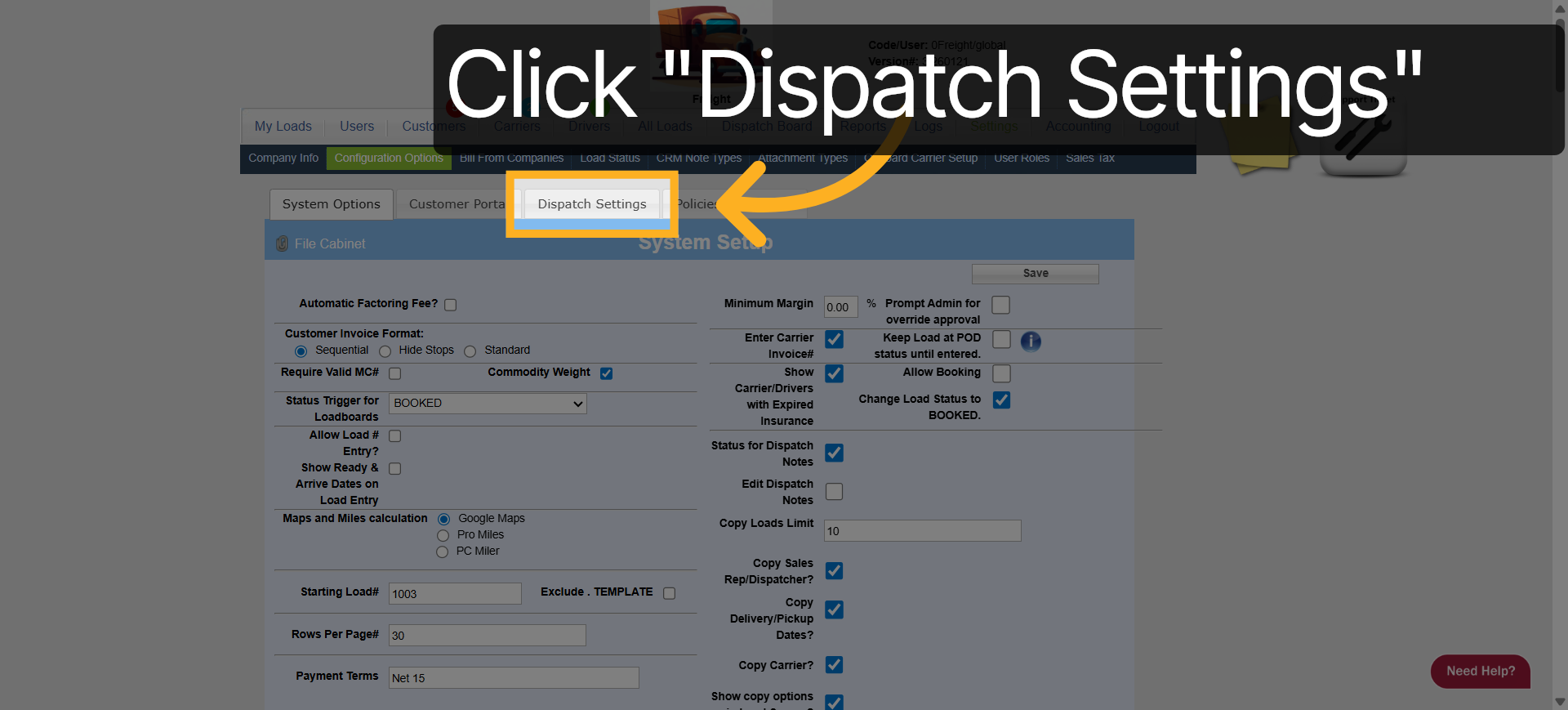
- Go to Settings.
- Open Configuration Options.
- Select Dispatch Settings.
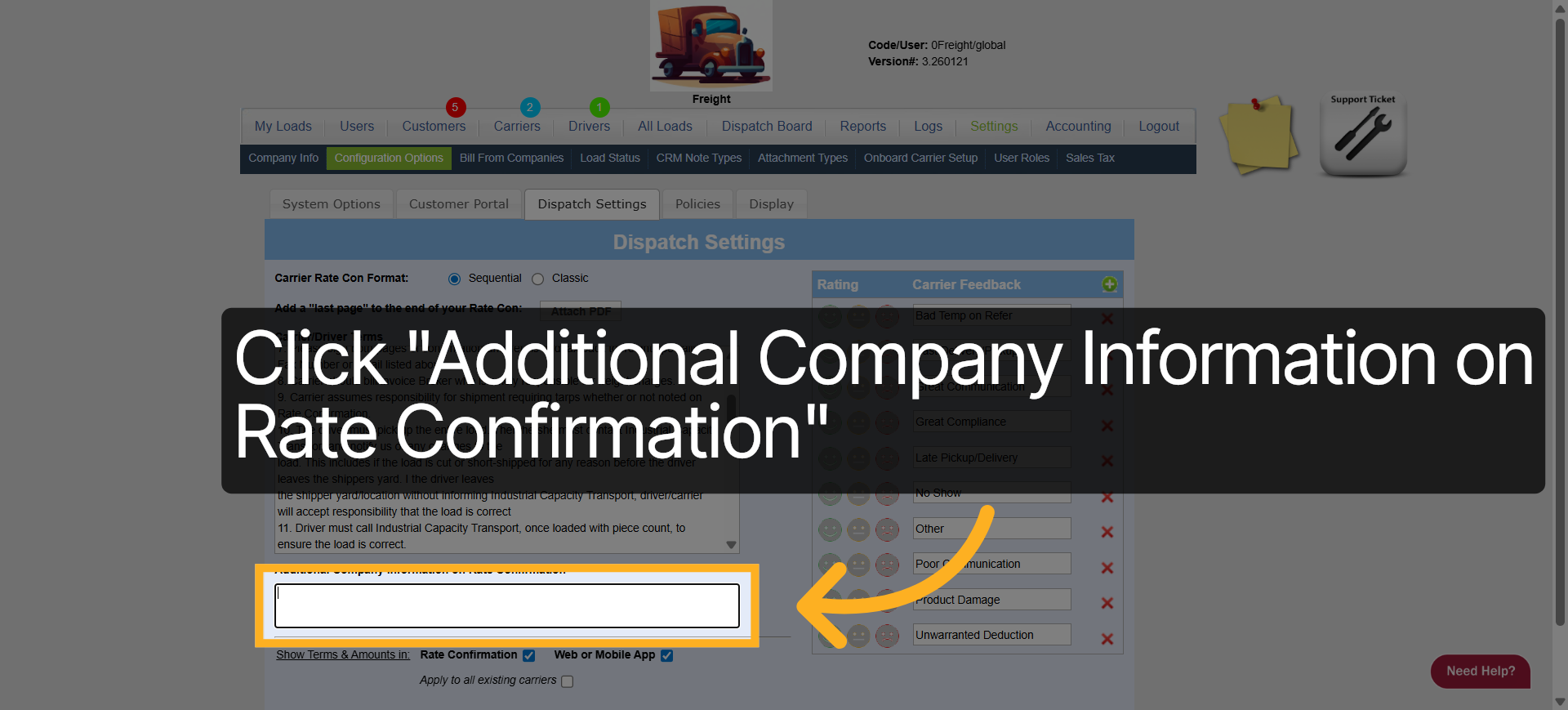
- Find Additional Company Information on Rate Confirmation.
- Enter the short text you want to print on the Rate Confirmation.
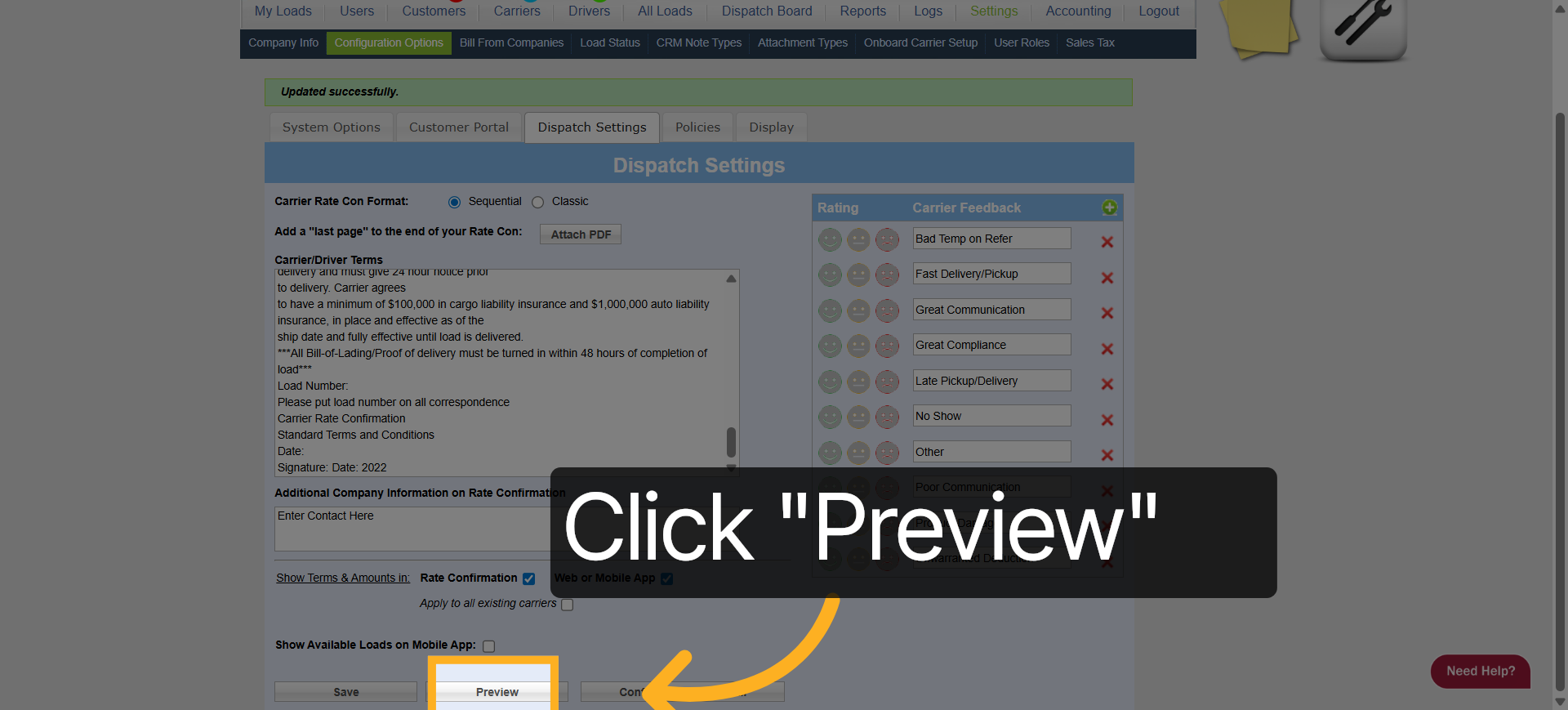
- Click Save.
- Click Preview to review how the information appears on the report.
Confirm on a Load
- Open a saved load with a carrier assigned.
- Click Rate Con to open the Rate Confirmation PDF.
- Review the top company section of the report.
- Confirm the additional company information appears correctly.
Tips
- Use short text: The report has limited space in the header area.
- Use carrier terms for longer language: Put longer payment terms, legal language, or dispatch instructions in the carrier terms area.
- Preview before sending: Always use Preview or open a saved load's Rate Con after changing document text.
- Check your TMS type: Freight Brokers normally use Rate Confirmations. Dispatch Services and Carrier / Trucking Company accounts normally use Dispatch Reports.
Troubleshooting
- The text is cut off: Shorten the message. The field is meant for one brief line of information.
- The text does not appear on the report: Save the Dispatch Settings, then reopen or regenerate the Rate Confirmation from the load.
- The report says Dispatch Report instead of Rate Confirmation: Confirm your company TMS type and document workflow.
- The company name, address, or logo is wrong: Review your Company Info and Logo setup.